Respondents
A respondent is the account profile of someone who has taken your quizzes — name, email, avatar, any extended fields you defined, and their submission history.
Respondents and leads are two layers: a respondent is the person, a lead is that person's follow-up record. A respondent can exist without a lead (someone who answered anonymously and left), but a lead always belongs to a respondent.
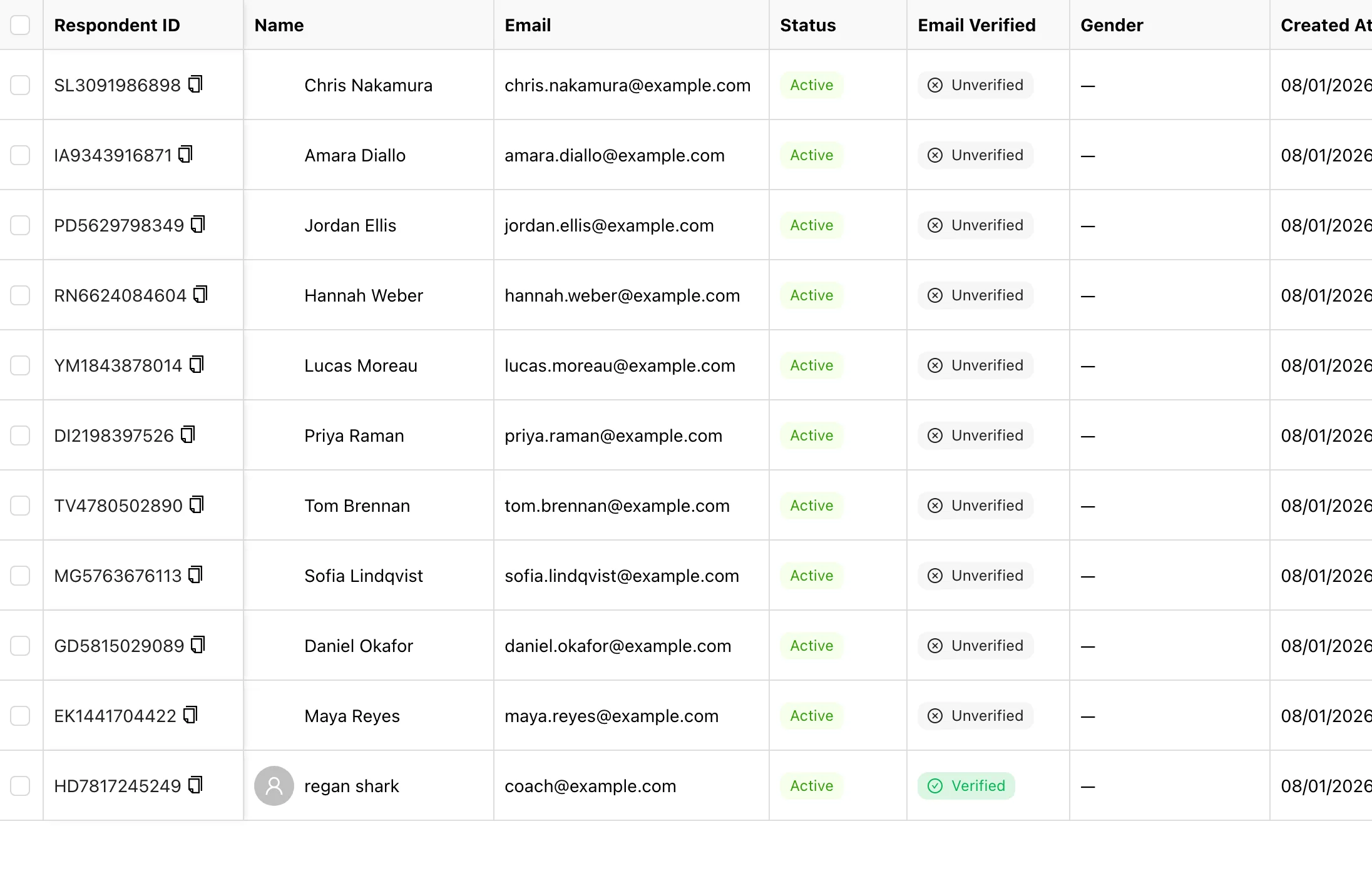
What's in the list
| Column | Notes |
|---|---|
| Respondent ID | A generated business ID, copyable, for referring to someone externally |
| Name / Email | Click to open the detail panel |
| Source | How this person arrived — see below |
| Status | Active or Disabled |
| Email Verified | Whether they verified their address |
| Created At | When the profile was created |
If you've configured extended fields, they appear as extra columns too.
The three sources
Source is written when the profile is created and never changes afterwards. It answers "how did this person get here":
- Self sign-up — they signed in or registered on the answer page themselves.
- From lead — created as a side effect of you adding a lead by hand.
- Added manually — you created them directly with Add Respondent.
Adding and disabling
- Add Respondent — enter a name and email; the password is optional. Useful for importing a roster first and letting people set their own password later.
- Disable / Enable — a disabled person cannot sign in to the portal, but all their past submissions are kept. Good for former clients or refunds.
Moving to trash
Deleting a respondent goes through the trash and can be restored within 5 days.
Deleting a respondent is heavier than deleting a lead: their lead, submissions and bookings are hidden too. If you only want to clear the follow-up record and keep the responses, use move to trash on the lead instead.
Bulk delete works the same way — select several rows and they all go to the trash.
In this section
Lead Detail
The lead detail page gathers one person in one place: who they are, the quizzes they took and their reports, your team's comments, the tags and owner on the record, and the next booking.
Extended Fields & Avatars
Extended fields collect the extra details you want beyond name and email — student ID, company, city, phone — asked at first sign-in. Up to five fields, plus how respondent avatars work.