List & Board
The Leads page has two views, switched with the List / Board toggle in the top right. The choice is yours alone — it does not change what teammates see.
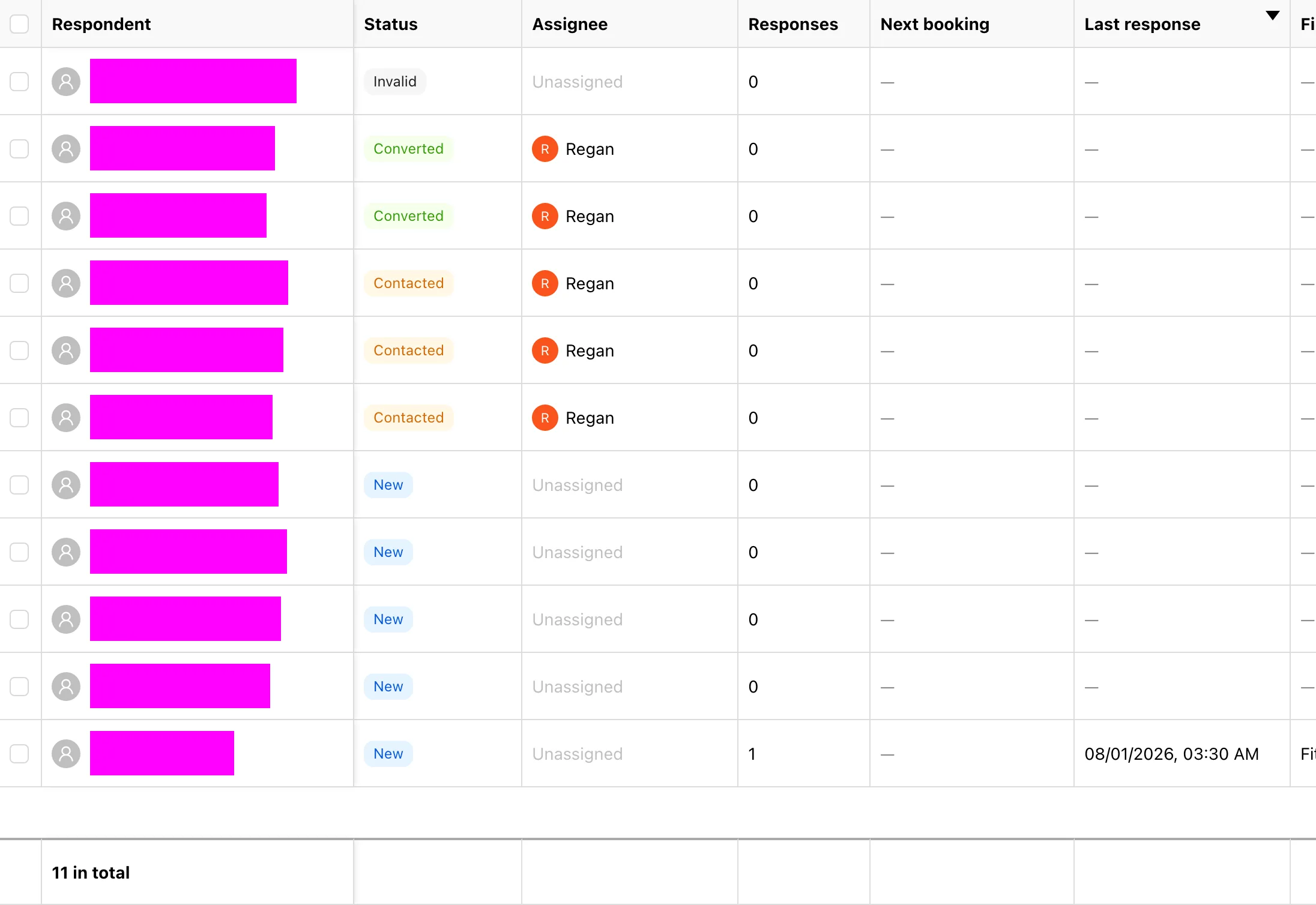
List view
Best for working in bulk and sorting by a field. The table has these columns:
| Column | Meaning |
|---|---|
| Respondent | Name and email; click to open the lead detail |
| Status | Where they sit in the pipeline — see Statuses, Tags & Owners |
| Tags | Colour tags; a lead can carry several at once |
| Assignee | The team member who owns this lead |
| Responses | How many quizzes this person has submitted in total |
| Next booking | Their next upcoming booking, blank if none |
| Last response | When they last submitted |
| First quiz | The quiz where they first left their details |
The list uses infinite scroll — keep scrolling to load more — and column headers are sortable.
Board view
Columns are follow-up statuses, one per status, and dragging a card to another column changes its status. Good for walking the pipeline once a day and pushing people along.
Dragging a card also changes its position within the column, and that order is remembered — so you can pull today's calls to the top.
Bulk actions
Tick several leads in list view and a bulk action bar appears:
- Assign owner — hand the selected leads to a team member; they get a single aggregated notification.
- Tag leads — offered as Add tag and Remove tag. Use these for batches rather than replacing the whole tag set, which would wipe tags other people added.
- Move to trash — leads go to the trash and can be restored within 5 days.
All three bulk actions are capped at 50 leads at a time. Select more and you'll be told; just work in batches.
Moving to trash removes only the follow-up record. The respondent and their submissions are untouched. To remove the person as well, go to Respondents.
Overview
A lead is the layer that turns quiz results into business: one row per person who left contact details, carrying follow-up status, owner, tags, response count and next booking. Leads are cross-quiz.
Statuses, Tags & Owners
A lead carries three independent labels: a follow-up status (how far along), tags (what kind of person) and an assignee (whose job it is). What each is for and how to change them in bulk.