Dashboard Tour
After signing in you land on the Dashboard, which brings together all of your and your team's quizzes. It is the starting point for day-to-day management.
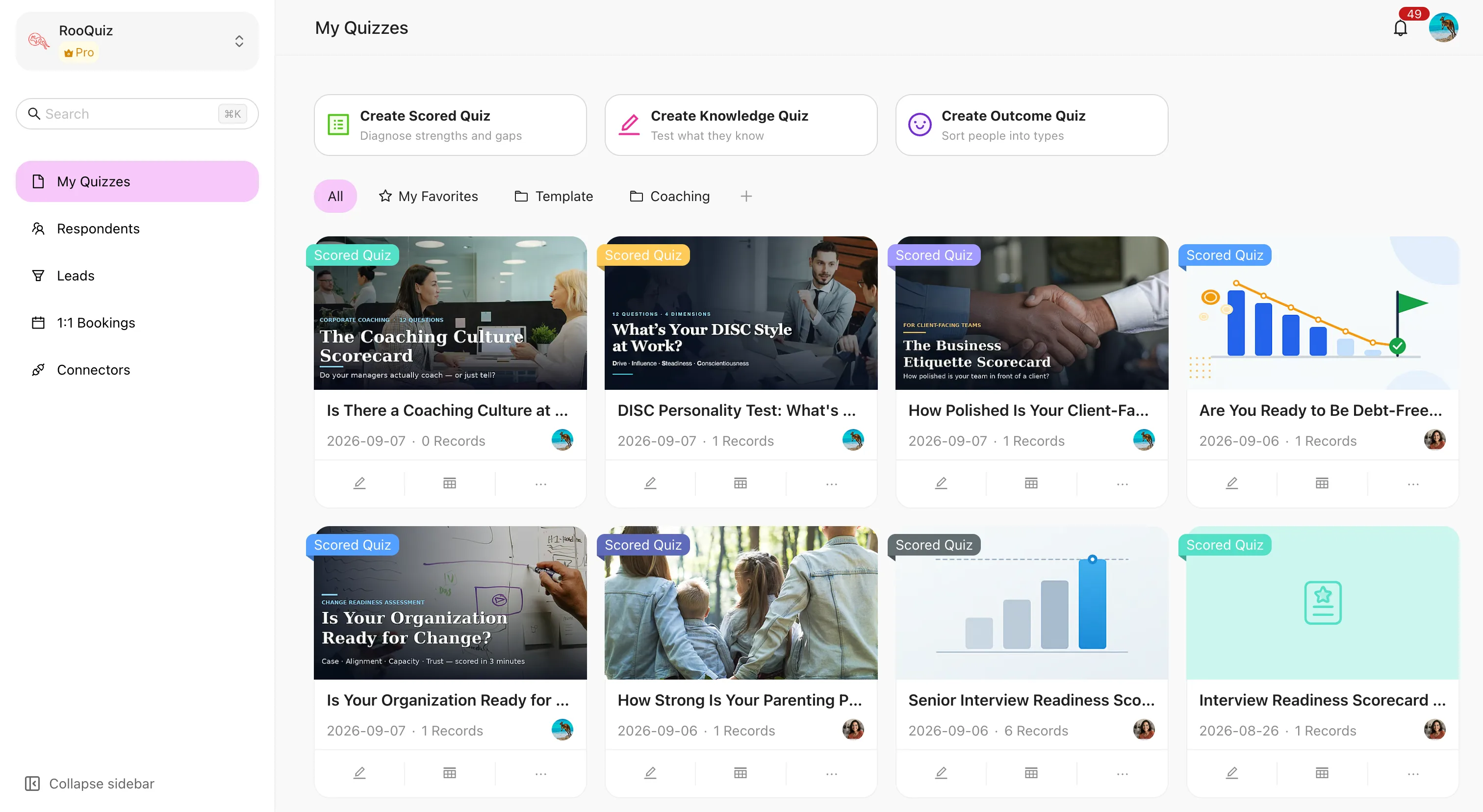
The main area
- Create cards — the three cards at the top map to Create Knowledge Quiz / Create Scored Quiz / Create Outcome Quiz.
- Group tabs — All, My Favorites, and any groups you created, with Create Group alongside them. See Workspace.
- Quiz cards — each shows a type badge, cover, title, creation date and response count, with edit, records and more actions along the bottom.
The left sidebar
| Item | Purpose |
|---|---|
| My Quizzes | This page |
| Question Banks | Reusable pools of questions |
| Respondents | Profiles of people who took your quizzes |
| Leads | The follow-up pipeline for people who left contact details |
| Connectors | Team-level push channels, visible to owners and admins only |
The search box at the top looks across quizzes, question banks, respondents and leads; the bottom lets you collapse the sidebar.
Get your first lead
New teams see a Get your first lead checklist on the dashboard: four steps from zero to your first submission.
- Create your first quiz — start from a template; scoring, result pages and the lead wall come pre-wired.
- Publish it — open your quiz and switch it live.
- Send the link out — grab the link or embed snippet from Share; a bio link, your site or a community post all work.
- Get your first submission — once someone completes your quiz, their answers and contact land in Records.
After the first submission it turns into You're up and running!. You can Hide the checklist at any time.
Tabs inside a quiz
Open a quiz and you get four tabs:
| Tab | Purpose |
|---|---|
| Edit | Build questions, logic, scoring and appearance |
| Settings | Access & visibility, basic info, answering experience, result page follow-up, language, system copy, analytics |
| Records | Every submission |
| Insights | Completion rate, drop-off points, source conversion |
Share is a button next to the tabs rather than a tab of its own. It opens Share this quiz, with four sections: Share Link (including the QR code), Share card, Embed and Distribution plan (per-channel links and copy, plus Add a channel for your own sources).
Quizzes used to have a "Connect" tab of their own. That has moved up to team-level Connectors — configure once and every quiz uses it, instead of repeating the setup per quiz.
The dashboard shows quizzes for the current team. If you belong to several, switch with the team switcher in the top left and the list follows.
Sign Up & Sign In
Create a RooQuiz account or sign in from one page with your email or Google, verify your email, reset a forgotten password, and understand how an account relates to teams before you build your first quiz.
The Four Quiz Types
The four RooQuiz quiz types and what each is for — knowledge tests, multi-dimension assessments, outcome quizzes and randomised knowledge quizzes — and why the type is fixed at creation.