Connectors & Automation
Connectors push the leads and bookings your quizzes generate into the tools you already use — email, your own backend, Slack, or your email service provider. Find them under Connectors in the left sidebar.
Connectors are team-level: configure one and every quiz uses it. To let only certain quizzes fire a connector, narrow it with trigger scope.
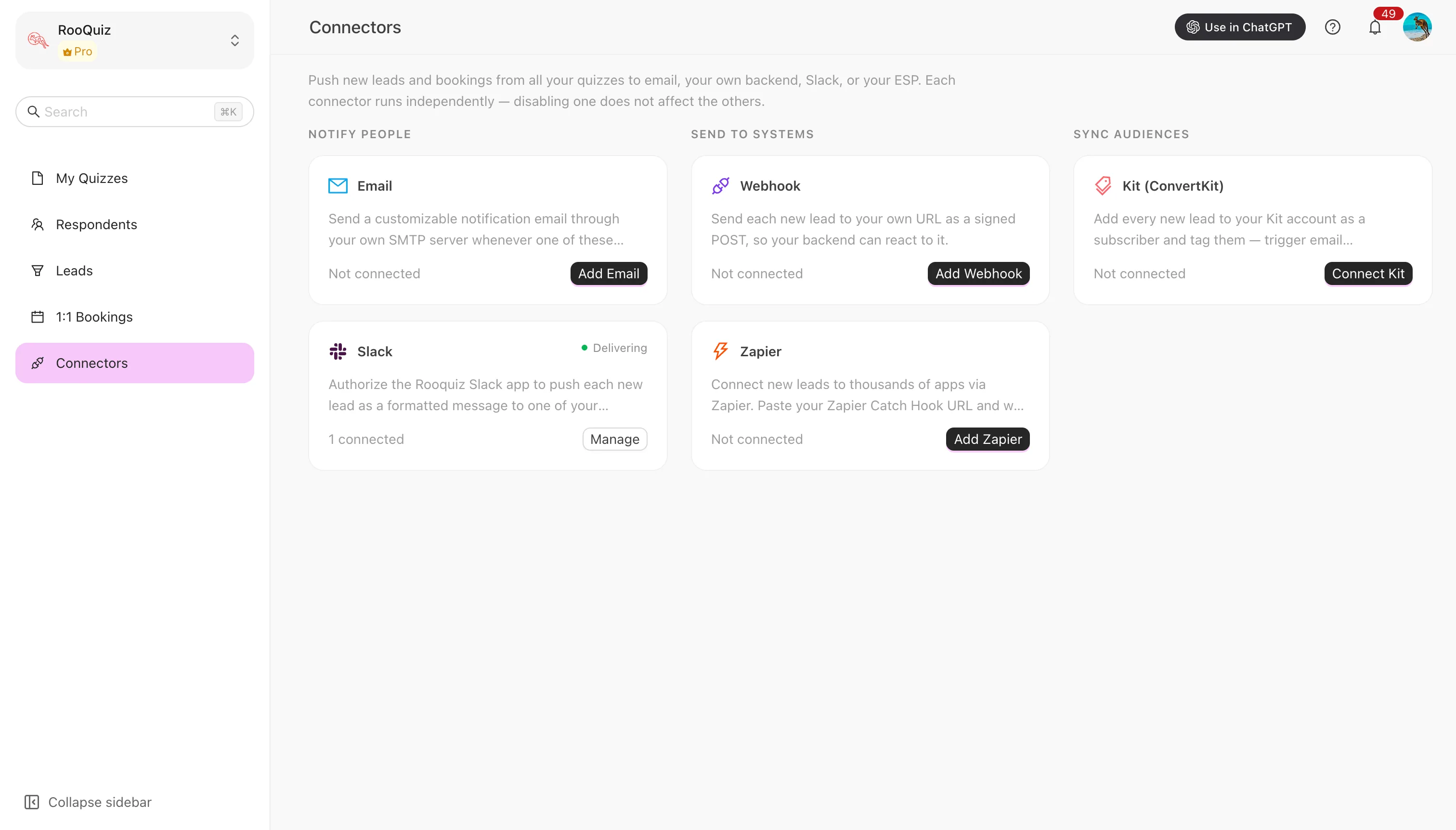
The five channels
| Channel | What it's for |
|---|---|
| Send a customizable notification to chosen recipients when an event fires | |
| Webhook | POST to your own URL with an HMAC signature |
| Slack | Authorize the Slack app and post new leads to a channel |
| Zapier | Paste a Catch Hook URL and reach thousands of apps |
| Kit | Add new leads to Kit (ConvertKit) as subscribers and tag them |
Each connector runs independently — disabling one does not affect the others. Per-channel setup is covered in The five channels.
Permissions and plan
Only the organization owner or an admin can manage connectors. Other members get a no-permission notice, and the sidebar item isn't shown to them.
The Email channel is available on every plan — it sends through your own SMTP server, so it costs us nothing; the other four are Pro only. On a free team, selecting a Pro channel greys out the configuration area and offers an upgrade link.
What the connector card tells you
Each configured connector shows:
- Enabled / Disabled — whether it's working.
- Setup incomplete — OAuth finished but a channel or final step is still missing. These do not deliver.
- Last delivery — when it last fired and how it went (success / failed / quota exceeded).
After setting one up, hit Send test to confirm the other end really receives it, rather than finding out on your first real lead.
In this section
Want to pull data on your own schedule instead of receiving pushes? See the REST API and MCP integration.
The Respondent Side
Booking seen from the respondent's side: how to switch the booking section on for a quiz, which pieces of copy you can customise, and what people can reschedule or cancel for themselves.
The Five Channels
The five connector channels — Email through your own SMTP, Webhook, Slack, Zapier and Kit — what each one delivers, the recipients and message format you can set, and one connector per channel.